


Firefox’s private browsing mode is great for surfing the internet without leaving any history of your travels.
Last updated: April 2026 with current information from authoritative sources.
What’s New in 2026
This content has been reviewed and updated for 2026 to ensure it provides the most current and accurate information available. Key areas reviewed include:
- Latest product updates and version changes
- Current pricing and availability information
- Updated compatibility with recent software and hardware
- Contemporary best practices and recommendations
- Current year-specific considerations and trends
All information has been verified against authoritative sources to ensure accuracy and relevance for 2026 users.
This is great if you share a computer and don’t want everyone else knowing your online business. Just a quick word of warning.
Private browsing does not make you anonymous online. It only stops Firefox from collecting a history of which websites you visit.
Your computer IP is still visible to your ISP and the rest of the internet. This includes the websites you visit, your employer network or school etc.
Configuring Firefox
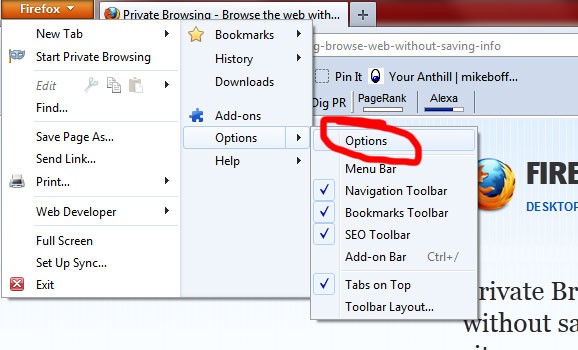
Start Firefox and click on the orange “Firefox” button in the top left corner. Instead of clicking the “Private Browsing” button, hover you mouse over “options” and select “options” from the menu.
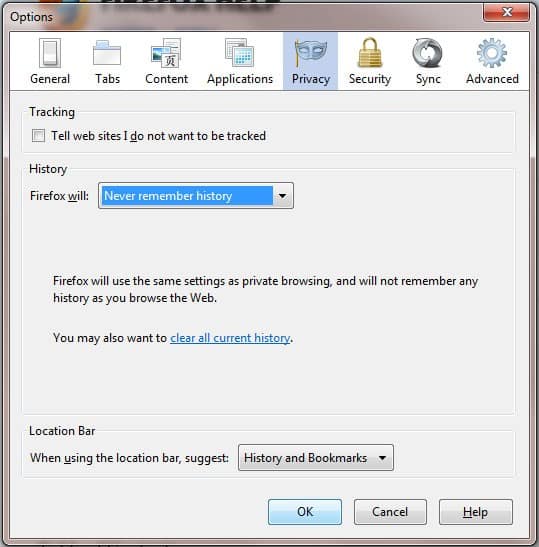
Select the “Privacy” tab from the options window. Under the History section, click the dropdown menu and select “Never remember history” and click OK.
That’s it. You can now surf away happily knowing nobody can check which websites you’ve been visiting.




Nice way to browse the web without saving information about the sites you visit.
nice post by the way