
Most home and office computers usually connect to the internet via a dynamic internet connection. While this is fine for everyday use like checking your email or surfing the web, it’s not so good if you need to remotely connect to your PC from another location as the IP address will change on a regular basis.
Last updated: April 2026 with current information from authoritative sources.
What’s New in 2026
This content has been reviewed and updated for 2026 to ensure it provides the most current and accurate information available. Key areas reviewed include:
- Latest product updates and version changes
- Current pricing and availability information
- Updated compatibility with recent software and hardware
- Contemporary best practices and recommendations
- Current year-specific considerations and trends
All information has been verified against authoritative sources to ensure accuracy and relevance for 2026 users.
Using a dynamic DNS service allows you to map a memorable URL over the IP assigned to you by your ISP. The dynamic DNS service will constantly track your dynamic IP and if it changes, update its self accordingly.
Connecting remotely to your PC can be extremely useful if you want to
- Host a website from your home/office PC
- Remote access your computer from anywhere in the world
- Access IP cameras or CCTV systems
- Run a game server
For this example I will be using a free dynamic DNS service by Dynu.com and use it to remotely access my office PC from home using RealVNC.
Setup Your Dynamic DNS Service
- Head over to www.dynu.com and sign up for a free account.
- Sign in and create a sub domain on one of Dynu’s free domains. You can use anything you like for example I used – mysubdomain. dynu.com
- Download the Dynu Basic Dynamic DNS Service client and install in on the computer you want to remotely access.
- Run Dyun Basic Client from the computers start menu and click the “Domain” tab. Add your custom URL and password and press OK.
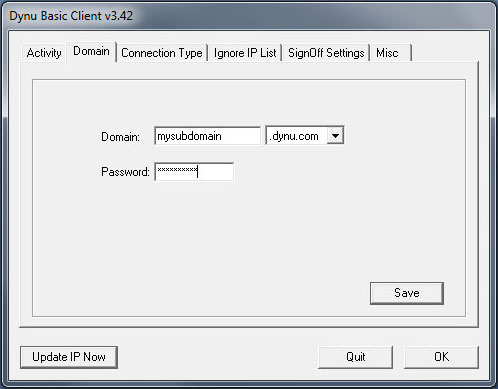
This will only need to be done once as the client software will automatically load when Windows starts.
Setup VNC Server On Your Computer
RealVNC allows you to connect remotely to your home or office computer from anywhere in the world. You can control your computer using your Smartphone, Tablet or another PC.
- Download and install RealVNC on your computer you want to access remotely from here.
- When prompted to “add an exception to the firewall for VNC server” make sure the option in ticked.
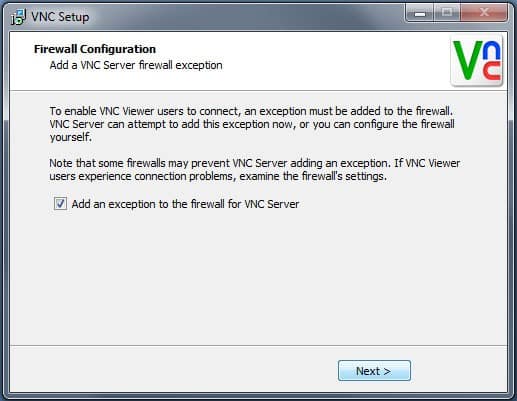
- Once VNC is installed you will get an error about having no password. Click Show then Resolve and create one. This is the password you will use to login from another device or PC.
Note: VNC Server will open port 5900 in your computers firewall. This will allow other computers on your local network access it remotely. To access your computer from the internet, you will also need to open port 5900 in your routers firewall.
This must be done so computers from outside your local network can assess the VNC server.
Each router has a slightly different ways of opening ports, but here is an excellent website that will walk you through the process. All you need to know is the model number of you router – portforward.com
Setting Up VNC Viewer
Hopefully by now you have managed to
- Setup your custom dynamic DNS address with www.dynu.com
- Installed VNC server on the computer you want to access remotely and opened port 5900 in both your computer and routers firewall.
Now you need to download RealVNC viewer. This is a standalone program and can be downloaded from here www.realvnc.com/download/viewer/
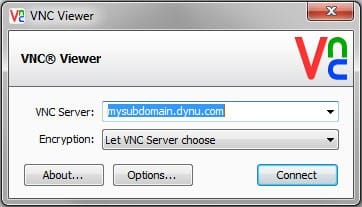
Run VNC Viewer and enter your custom Dynu.com URL click connect and enter your VNC Server password.
Did you find this useful? Do you need some help with your setup? Post any questions or comments below.